
How to Move Phone Storage to Sd Card Android
To move phone storage to an SD card on Android, open the Files app, select the files you want to move, tap the More button, and then choose the SD card option. Alternatively, you can select a category in the Files app, find the file you want to move, tap the More button, and then select the SD card option.
If you're running out of internal storage on your Android device, transferring files to an SD card can help free up space. In this guide, we'll show you how to easily move phone storage to an SD card on Android.
Whether you want to transfer photos, videos, or other types of files, these steps will help you optimize your storage and keep your device running smoothly. By moving files to an SD card, you can create more space on your phone and ensure that your files are easily accessible. Let's get started!
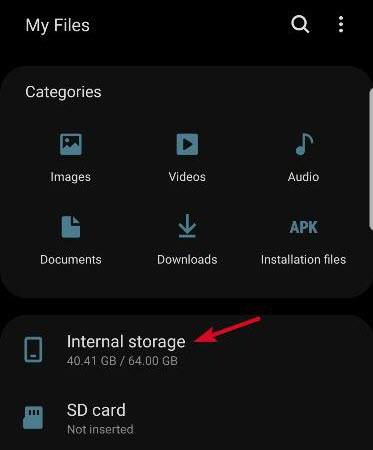
Credit: www.online-tech-tips.com
Transferring Files From Internal Storage To Sd Card
If you want to transfer files from your Android device's internal storage to an SD card, you can use the Files by Google app. Open the app and tap on "Browse" at the bottom. Under "Categories," select the type of files you want to move or copy. Find the specific file you want to transfer and tap on "More" at the top right. Tap on "SD card" to select the destination. If you want to move or copy files to a new folder on the SD card, you can create a folder first. This method allows you to free up space on your device by transferring files to an external storage option. If you are unable to move files to your SD card, check if there is enough free space on the card or try moving files in smaller parts.
If you are using a Samsung device, you can follow these steps to transfer files from internal storage to an SD card:
- Select "Apps" from the home screen.
- Choose "My Files."
- Navigate to the files you want to transfer within your device storage.
- Select "More" and then "Edit."
- Check the files you want to move.
- Select "More" again and choose "Move."
- Select "SD memory card" as the destination.
By following these steps, you can easily move or copy files from your Android device's internal storage to an SD card.
Transferring Files From Sd Card To Phone Storage
Transferring files from an SD card to phone storage on Android can be a simple process. To access the files, you can use the Google app. Start by locating the files on the SD card and then move or copy them to the phone storage. This can be done by opening the Files by Google app on your Android device and tapping on Browse. Under the "Categories" section, select the category that contains the files you want to transfer. Once you find the specific file, tap on More at the top right and then select SD card. If you want to move or copy files to a new folder, you can create a folder as well. By following these steps, you'll be able to easily transfer your files from the SD card to phone & how to enable storage permission on samsung.
Managing Files And Folders On Sd Card
| How to Move Phone Storage to SD Card Android |
| Managing Files and Folders on SD Card |
| Creating a folder on the SD card |
To move phone storage to an SD card on Android, you can follow these steps:
- On your Android device, open the Files app.
- Navigate to the file or folder you want to move.
- Tap and hold the file or folder.
- Select "Move" from the options.
- Tap on "SD card" to select it as the destination.
- If you want to create a folder on the SD card, tap on the "+" icon.
- Enter the desired name for the folder and tap on "Create".
- To organize files within the folder, tap on the folder and repeat the process to move or copy files.
- If you want to rename or delete files on the SD card, tap and hold the file, select "Rename" or "Delete", and confirm the action.
By following these steps, you can efficiently manage files and folders on your SD card in your Android device.
Conclusion
To summarize, moving your phone storage to an SD card on Android is a simple process that can free up valuable internal storage space. By following the steps outlined in this blog post, you can easily transfer files, photos, and other data to your SD card.
With the ability to move or copy files to a new folder, you have complete control over organizing your content. Don't let limited storage hold you back – make the most of your Android device by utilizing an SD card for extra space.
Expand your storage capacity and enjoy a smoother user experience.
 Reviewed by AndroidSparks
on
October 06, 2023
Rating:
Reviewed by AndroidSparks
on
October 06, 2023
Rating:


No comments: